
LinkMatch for HubSpot is a Chrome extension that connects LinkedIn and XING with your HubSpot CRM. Directly on a profile page it shows whether the person is already in HubSpot, lets you save new Contacts and Companies with one click, edit records, create Deals, Tasks and Notes, and sync your conversations to HubSpot, all without leaving the page.
LinkMatch works with every HubSpot plan, including free, and comes with a 14-day free trial, no credit card required.
Before you start
- Google Chrome (or a Chromium-based browser) on a desktop computer, since LinkMatch is a browser extension and does not work on mobile devices.
- A HubSpot account you are logged into in the same browser. If you belong to several HubSpot accounts, know which one you want to connect.
- HubSpot user permissions that include access to the Marketing module with the Lists permission enabled (see Troubleshooting).
1. Install the extension
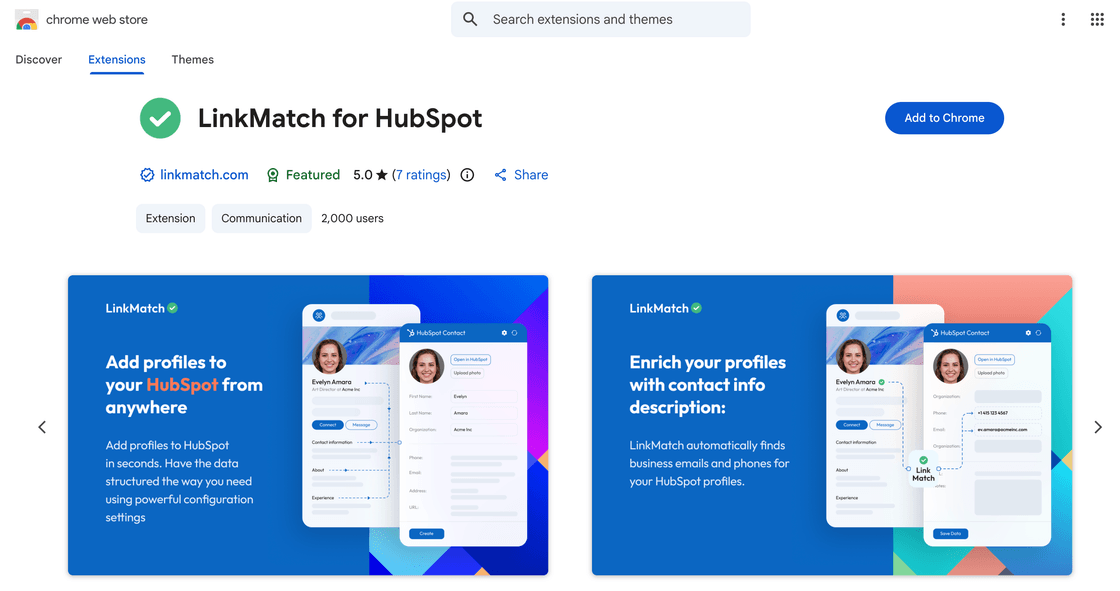
- Open the LinkMatch for HubSpot page on the Chrome Web Store.
- Click Add to Chrome, then confirm with Add extension.
- When installation finishes, the LinkMatch settings page opens automatically. You can reopen it at any time at linkmatch.com/options-hubspot, or by clicking the LinkMatch icon in the Chrome toolbar (pin it via the puzzle icon for quick access).
2. Connect your HubSpot account
- On the LinkMatch settings page, click Sign in with HubSpot.
- A HubSpot window opens. If you are a member of more than one HubSpot account, select the one you want to connect.
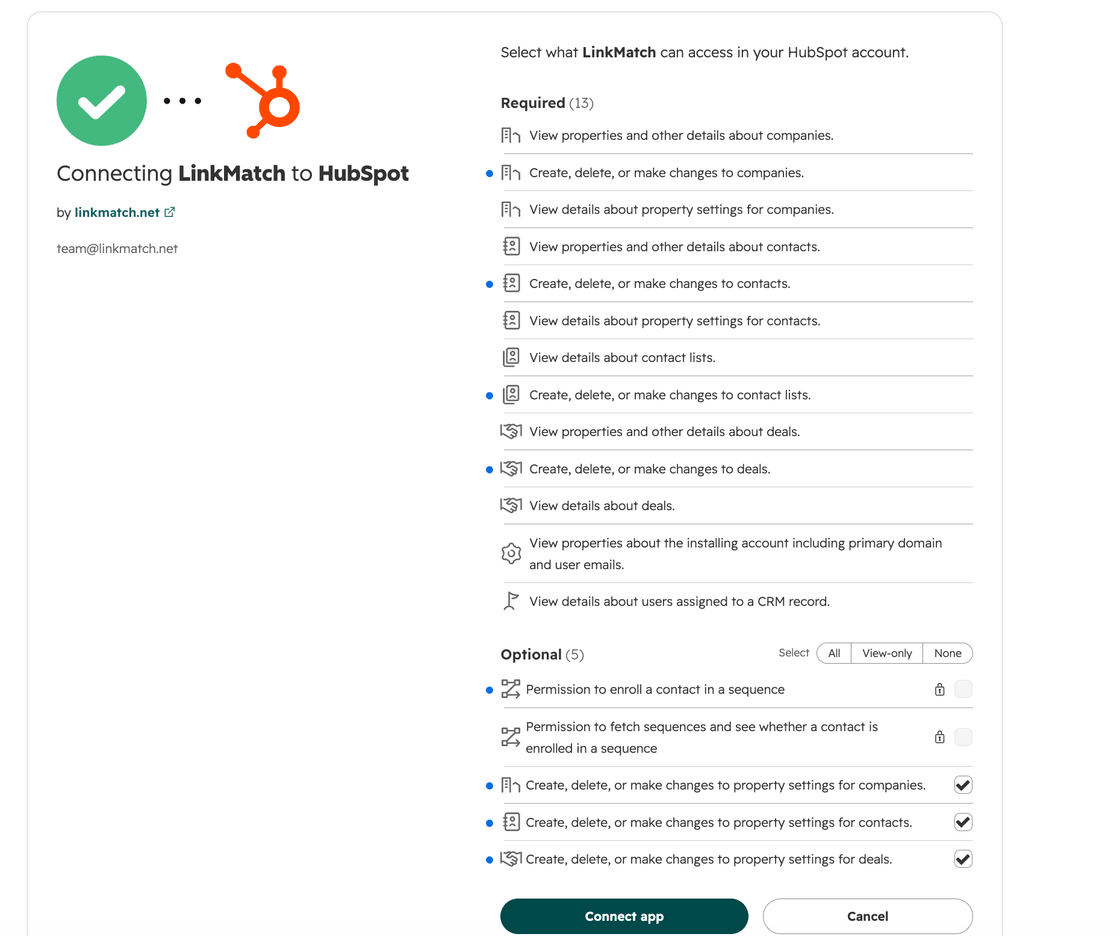
- Review the requested permissions and click Connect app. LinkMatch asks for access to Contacts, Companies, Deals, Lists, owners and CRM properties, which is what lets it match profiles, save records, and create Deals, Tasks and Notes for you.
- The window closes and the settings page shows you as signed in. Your 14-day free trial starts automatically.
Prefer video? Watch the setup video or the LinkMatch tutorials playlist.
3. Configure LinkMatch (optional)
The defaults work out of the box, so you can skip this step and adjust things later. Everything below lives in the left-hand menu of the LinkMatch settings page:
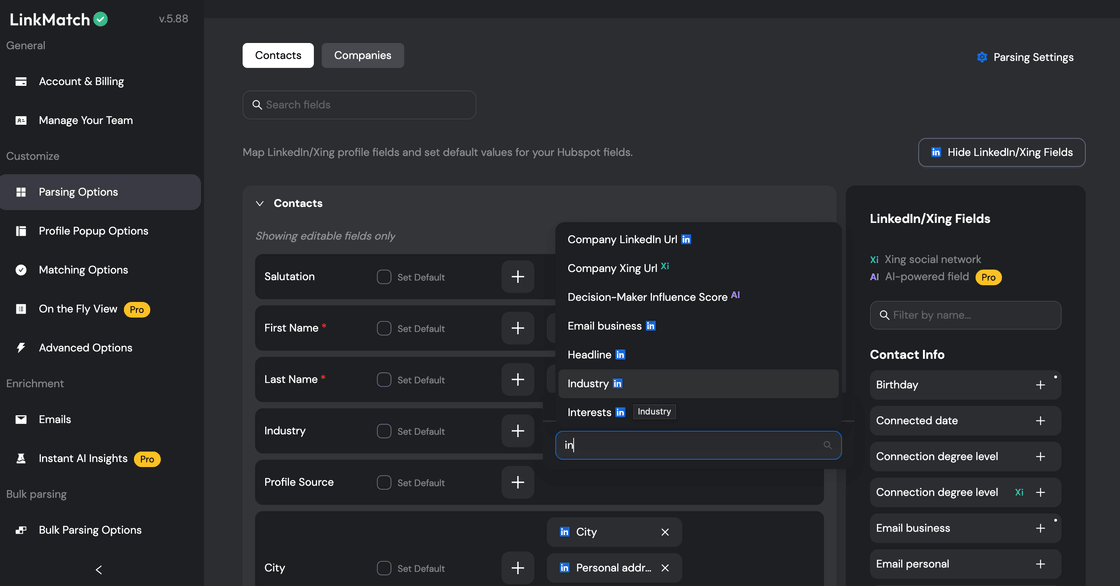
- Parsing Options, map LinkedIn and XING profile fields onto your HubSpot Contact and Company fields, set default values that are filled in automatically when you save, and change the order in which fields appear.
- Matching Options, enable or disable automatic matching in individual areas of the page.
- Profile Popup Options, control how the LinkMatch pop-up looks and behaves on profile pages.
- Advanced Options, fine-tune search priority, which modules are shown, and other lower-level settings.
- Manage Your Team, invite teammates and edit your team and billing details.
- Autosaving Settings, in the Messages group (Professional plan), turn on automatic saving of your LinkedIn conversations to HubSpot as Notes.
The menu adapts to your plan and configuration, so you may not see every entry listed above.
4. Use LinkMatch
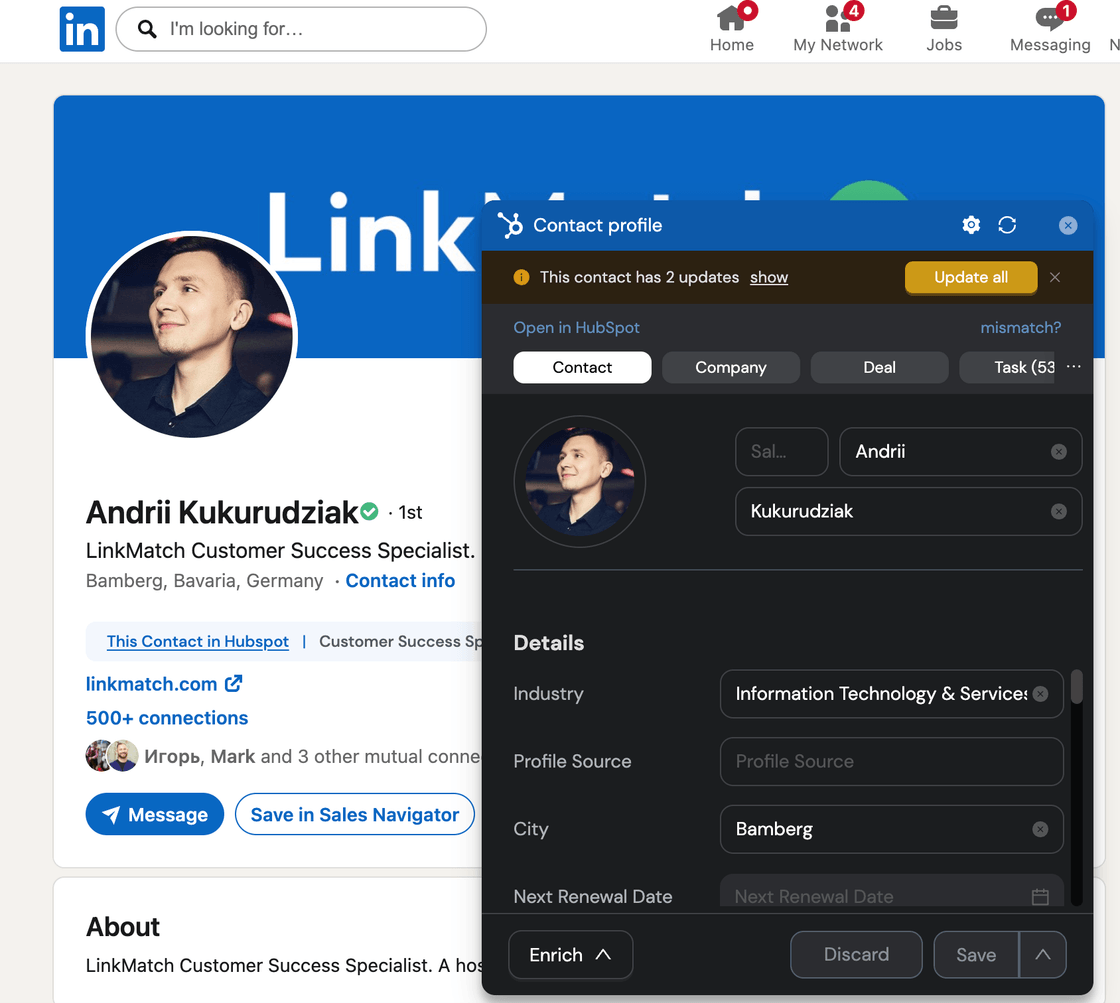
- Open any profile on linkedin.com or xing.com. LinkMatch adds a panel directly on the page.
- Matching: a green indicator means the person or company already exists in HubSpot, and you can click it to view and edit the full record, including associated Deals, Tasks and Notes, without opening HubSpot.
- Saving: if the person is not in HubSpot yet, click Save to create a Contact (with their Company) in one click. Duplicates are prevented automatically, because LinkMatch matches before you save.
- Deals, Tasks, Notes: use Add New Deal / Add to existing Deal, Add New Task and Add New Note right from the profile.
- Message sync: on the Professional plan, conversations with saved contacts are synced to HubSpot automatically as Notes; on the Standard plan you can sync them manually.
- AI insights (Professional plan): get role analysis, communication tips and profile summaries to improve outreach.
Disconnect LinkMatch from HubSpot
- Open the LinkMatch settings page and click Log out, which removes the stored connection to your HubSpot account from the extension.
- To also revoke LinkMatch’s access on the HubSpot side, go to your HubSpot portal → Settings → Integrations → Connected Apps, find LinkMatch and click Uninstall.
What happens to your data: disconnecting stops all matching and syncing, but nothing is deleted. Every Contact, Company, Deal, Task and Note that LinkMatch created remains in HubSpot, and your profile data on the networking platforms is untouched. If you reconnect later, LinkMatch resumes matching against your existing records.
Uninstall the extension
- Right-click the LinkMatch icon in the Chrome toolbar and choose Remove from Chrome…, or go to chrome://extensions, find LinkMatch for HubSpot and click Remove.
- Optionally revoke access in HubSpot as described under Disconnect. For details see HubSpot’s Knowledge Base article on connecting and disconnecting apps.
Uninstalling removes the extension from your browser only, and all records created in HubSpot are preserved.
Troubleshooting
“Permissions error” while signing in, your HubSpot user is missing the permissions LinkMatch needs. Ask a HubSpot admin to open Settings → Users & Teams, edit your user, and make sure you have access to the Marketing module with the Lists permission enabled. Then sign in to LinkMatch again.
The wrong HubSpot account got connected, log out on the LinkMatch settings page, then in HubSpot’s top toolbar switch to the correct account before clicking Sign in with HubSpot again.
The LinkMatch panel doesn’t appear, reload the profile tab after installing or signing in, and check that the extension is enabled at chrome://extensions.
Need help?
- Email us: [email protected]
- Read the LinkMatch for HubSpot FAQ
- Browse the knowledge base
LinkedIn® is a registered trademark of LinkedIn Corporation. XING® is a registered trademark of New Work SE. LinkMatch is an independent product and is not affiliated with, endorsed by, or sponsored by either company.