

Key Takeaways
- Insightly connects to other tools in three ways: native integrations, its no-code AppConnect engine, and a REST API for custom builds.
- Start with the integrations your team uses every day, like email, calendar, and accounting, before adding nice-to-have apps.
- LinkedIn is where most B2B prospecting happens, but getting profile data into Insightly still means a lot of manual copy-pasting unless you add a dedicated tool.
- A Chrome extension like LinkMatch shows whether a LinkedIn profile is already in Insightly and lets you add or update the record in one click.
- Every integration needs a clear owner and rules for handling duplicates. Without them, more connections mean messier data.
How Insightly Integrations Work: Native, AppConnect, and API
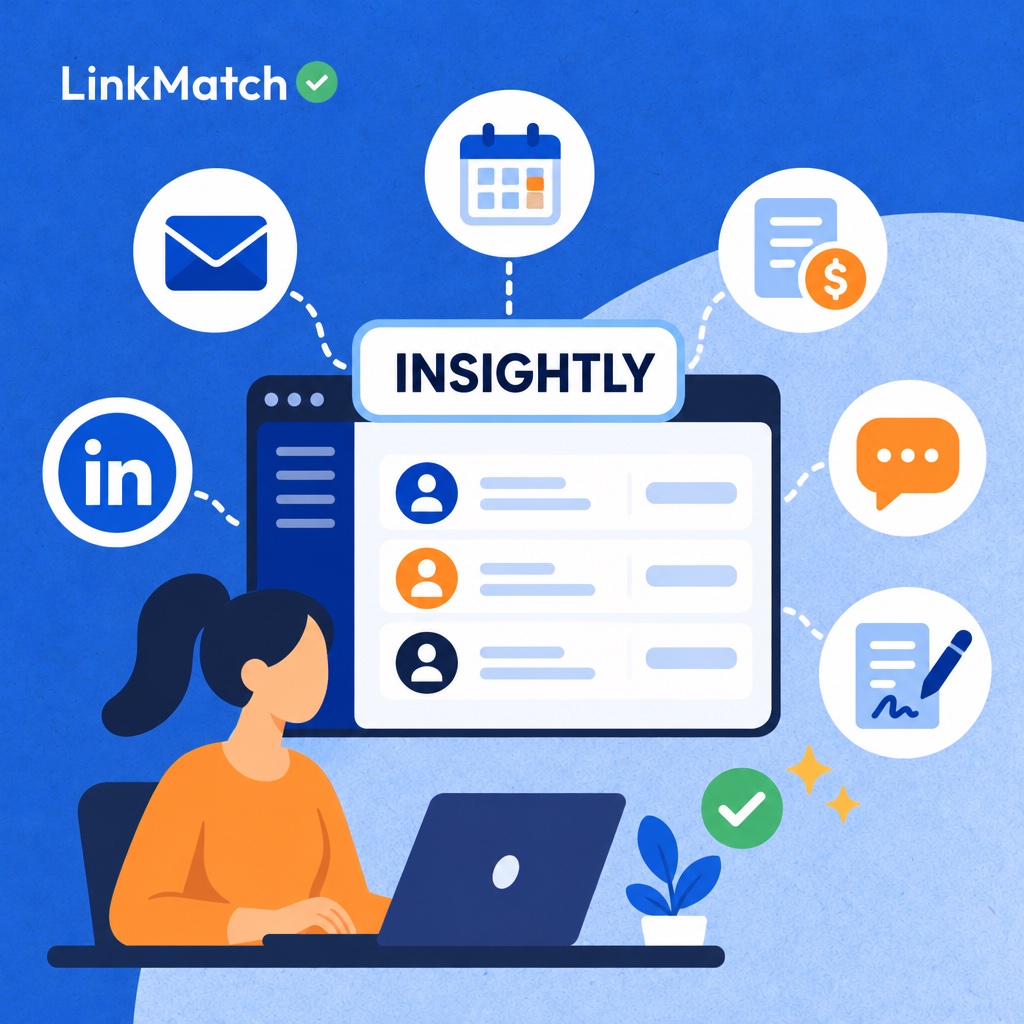
Insightly connects to other apps through three main paths: native marketplace integrations for common tools, AppConnect for multi-step automated workflows, and the REST API for custom development, plus browser extensions for web services. The right choice depends on how much technical skill your team has and how complex the connection needs to be. Most teams start with a native app because it takes minutes to switch on. Once a process spans several apps, they move to AppConnect, which builds workflows without much code. Teams with in-house or proprietary systems usually need the API, and that route calls for a developer. Browser extensions sit alongside all three and handle quick data updates from the sites your team already uses every day.
| Integration method | Best for | Technical skill needed | Typical use case |
|---|---|---|---|
| Native integrations | Common tools like email and calendar | Low | Syncing Gmail/Outlook emails to contacts |
| AppConnect | Multi-step automations across apps | Low to medium | Creating a project when an opportunity is won |
| REST API | Custom or in-house systems | High (developer) | Pushing data from a proprietary platform |
| Browser extensions | Capturing data from websites like LinkedIn | Low | Adding a LinkedIn profile as a contact |
No developer on staff? Stick with native integrations and AppConnect.
Have engineers and a custom platform? The API gives you full control.
The Insightly Integrations Worth Setting Up First
Set up the Insightly integrations your team touches every day first: email and calendar sync, then accounting, marketing, communication, e-signature, and prospecting tools, leaving rarely used nice-to-have connections for later. Insightly works best when every call, meeting, invoice, and contract lands on the right record without manual typing, so the order matters because each category removes a different kind of data entry from a rep's or manager's day, and the earliest connections pay back fastest because they feed the activity history that every later connection builds on. Work down the ranked list below, finish one category before starting the next, and confirm each app name against Insightly's current app directory before connecting, since availability and plan requirements change and a stale listing wastes setup time for your whole sales team and skews pipeline reports for managers later.
- Email and calendar (Gmail, Outlook): log conversations and meetings automatically so every contact record shows real activity.
- Accounting tools such as QuickBooks or Xero connect closed deals to invoicing, so finance stops rekeying won opportunities.
- Marketing and email tools: keep lead status updated with campaigns so sales sees who is actually engaged.
- Team communication apps like Slack or Microsoft Teams send deal alerts where the team already works.
- E-signature and document tools such as DocuSign or PandaDoc speed up contract stages and shorten the gap between "verbal yes" and "signed."
- LinkedIn prospecting brings professional profile data into contacts, and Sales Navigator saves each salesperson 15 minutes per day (Forrester).
The Missing Link: Getting LinkedIn Data Into Insightly
LinkedIn drives most B2B leads, but its profile data rarely flows into Insightly automatically, which leaves sales teams copying names, titles, and companies into contact records by hand. LinkedIn drives 89% of all B2B leads (folk.app), and it is the world's largest professional network with 250 million members (Agile CRM). Yet most CRM job lists barely mention it. The manual routine is familiar. You open a profile, switch tabs, and copy a name. Then you go back for the job title, then the company. Before saving, you search Insightly for duplicates, because a repeat contact corrupts reporting and annoys prospects. Each lead takes a few minutes of this, and the minutes compound across a week of prospecting. Multiply that by dozens of prospects and the hours disappear. Reps end up doing data entry instead of conversations, and profiles that never get copied simply never reach the pipeline.
Manual entry: accurate only when someone has the time, and it never scales.
Automated entry: consistent records in seconds, with duplicates caught before they land.
Comparing Ways to Connect LinkedIn and Insightly
The best way to connect LinkedIn and Insightly is the one that combines fast speed, built-in duplicate detection, and ongoing profile updates, because manual entry, CSV imports, and automation workarounds each leave at least one of those gaps open. Speed, duplicate risk, data freshness, and cost all matter, because a fast method that creates duplicate contacts or leaves job titles stale quietly erodes pipeline trust, and a free method that eats hours of rep time is rarely free. Sales Navigator helps with research, but Core starts at $119.99/month (Salesflare, 2026), and its CRM sync depends on which integrations your plan supports, so budget for it separately from the connection itself, and confirm whether profile edits ever flow back into Insightly after the first import, since stale records are the cost most teams discover too late.
| Method | Speed per contact | Duplicate detection | Keeps data updated | Cost considerations |
|---|---|---|---|---|
| Manual copy-paste | Slow | None | No | Free but labor-heavy |
| CSV export and import | Batch only | Limited, depends on import rules | No | Free, prone to stale data |
| Automation platform workarounds | Varies | Requires custom logic | Partial | Extra subscription and setup time |
| Sales Navigator | Fast for research | Depends on CRM sync support | Partial | Starts at $119.99/month |
| Dedicated Chrome extension | One click | Built in | Yes, syncs profile changes | Per-user subscription, free trial |
How to Set Up a LinkedIn-to-Insightly Workflow in Minutes
Setting up a LinkedIn-to-Insightly workflow takes four moves: install a Chrome extension, connect your Insightly account, map fields, then check and add profiles directly from LinkedIn without switching tabs. The whole process runs inside the browser and is quick, because the extension reads the profile you already have open and pushes clean data into Insightly instead of asking you to copy and paste fields by hand, so each later step stays quick. Extensions such as Add to CRM draw on a verified database of 220M+ professionals, and in practice, tools like LinkMatch name Insightly as a supported CRM and show whether a profile already exists before you add it, which keeps the setup fast and duplicate-free; field mapping comes early because it decides how every future record is stored in your CRM.
- Install the Chrome extension and sign in.
- Connect your Insightly account and approve access.
- Map LinkedIn fields to Insightly contact and organization fields.
- Open any LinkedIn or XING profile to see whether it already exists in Insightly.
- Add new contacts in one click, or edit existing records inline.
- Optionally turn on automatic adds and email enrichment.
Tip: log notes and tasks from the same side panel, so follow-ups reach Insightly before you leave the profile.
Keeping Integrated Data Clean: Duplicates, Sync, and Ownership
Keeping integrated CRM data clean means setting clear rules before connecting more tools: one source of truth per field, a duplicate check before every new record, automatic profile updates, and a named owner for every record. Without those rules, each new connection adds another place where records can drift out of date. A contact gets added twice, a job title changes on LinkedIn but not in the CRM, and a rep emails someone who left the company months ago. Stale records quietly cost deals, because follow-ups go to the wrong person or never go out at all. Good hygiene means building a small set of habits into the workflow, so the data stays trustworthy as your stack grows and your team stops second-guessing what the CRM says. The four rules below keep that from happening.
- Define a source of truth for each field: job title and company come from LinkedIn, billing details from accounting, and deal stage from the CRM.
- Check for existing records before every add, matching on email, LinkedIn URL, or company domain so one person never becomes two contacts.
- Sync profile changes such as promotions and job moves. In practice, tools like LinkMatch update CRM records when a contact changes title or company on LinkedIn, so reps do not chase outdated details.
- Assign one owner per team and review sync logs monthly, so failed syncs and duplicate spikes get caught early.
Teams that treat LinkedIn-connected CRM data as a shared responsibility usually end up with no one watching it. A single named owner fixes that.
How to Choose Your CRM Stack by Team Type
The best integration stack for a CRM depends on team type: sales teams need email, calendar, e-signature, and LinkedIn, recruiters need email, calendar, and LinkedIn or XING, and agencies add accounting and project management. Your team's workflow should dictate which integrations matter, not the length of a vendor's app marketplace. Start with the two or three connections your people touch every day, then add more only when a manual step keeps repeating. A lean stack is easier to keep clean, and clean data is what makes every other stack useful.
| Team type | Must-have integrations | LinkedIn priority | Key metric to watch |
|---|---|---|---|
| B2B sales team | Email, calendar, e-signature, LinkedIn | High | Time from first touch to meeting |
| Recruiting or staffing team | Email, calendar, LinkedIn/XING | Very high | Time to shortlist |
| Marketing or consulting agency | Email, accounting, project management, LinkedIn | Medium to high | Pipeline value per client |
Recruiters who manage candidate relationships in Insightly face the same LinkedIn data-entry problem as sales reps. Profiles get copied by hand, and records go stale. LinkedIn's talent CRM integration guidance shows why syncing candidate data with the system of record matters.
To remove your team's most repeated manual step, pick the stack that helps you do that, and measure its effectiveness with one metric.
FAQs about insightly integrations
Does Insightly have a native LinkedIn integration?
Insightly doesn't offer a full native LinkedIn profile sync that automatically pulls profile data into your CRM. The usual options are a browser extension that captures LinkedIn profile details and adds them to Insightly, or LinkedIn Sales Navigator if your team already uses it. Check Insightly's current feature listings before you commit, because available features can change.
What is Insightly AppConnect?
Insightly AppConnect is a no-code/low-code workflow engine built into the Insightly platform. It connects Insightly to third-party apps and automates data flow between them. For example, you can sync new leads from a form tool, send a message when an opportunity changes stage, or update records across systems. You build these workflows without writing much code, if any. That makes AppConnect useful for teams that want to connect their apps without a developer.
How many apps can Insightly integrate with?
Through AppConnect, Insightly can connect with a wide range of third-party tools. Not every tool has the same depth of integration, so it's best to start with the apps that matter most to your sales and support process. Connect those first, then add more as your needs grow.
Can I add LinkedIn contacts to Insightly without duplicates?
Yes. When you use a LinkedIn browser extension for Insightly, it runs an in-CRM existence check as you view a profile. It checks whether that person already exists in your CRM. If they don't, you can add them with one click. If they do, you can see the existing record and avoid creating a second one. This keeps your CRM data clean, though you should still review your records regularly for duplicates that came in from other sources.
Do I need Sales Navigator to connect LinkedIn to Insightly?
No. Sales Navigator isn't required. The browser extension works on standard LinkedIn profiles, so you can add contacts without a paid LinkedIn plan. Sales Navigator may still be worth considering if your team needs advanced lead search and filtering, but you don't need it for basic LinkedIn-to-Insightly contact management.
Common Insightly Integration Mistakes That Cost You Clean Data
- Connecting everything at once: Turning on a dozen integrations in one go makes it hard to trace sync errors. Roll them out one at a time, starting with daily-use tools.
- Skipping field mapping: Default mappings often put job titles, companies, or phone numbers in the wrong fields. Map them deliberately before the first sync.
- Treating LinkedIn as a copy-paste source: Manual entry from LinkedIn creates typos and duplicates, and records go stale as soon as a contact changes jobs.
- No duplicate check before adding contacts: Adding a contact without checking whether they already exist splits activity history across records and confuses ownership.
- Leaving integrations without an owner: When nobody owns a connection, broken syncs go unnoticed for weeks. Assign an owner and review the integration regularly.
Sources
Stop Copy-Pasting LinkedIn Profiles Into Insightly
LinkMatch shows whether a LinkedIn or XING profile is already in Insightly, adds new contacts in one click, and keeps records synced when profiles change. Setup takes about 20 seconds, and you don't need a credit card.
Start Your Free Trial