

Key Takeaways
- LinkedIn offers no direct, free CRM integration. The only official route is Sales Navigator's CRM sync, which works with a limited set of CRMs.
- Most teams connect LinkedIn to their CRM in one of three ways: Sales Navigator sync, the CRM's own extension, or a third-party browser extension.
- The features that matter most are duplicate detection, one-click contact creation, editing records from LinkedIn, and syncing profile changes.
- Zoho CRM users can choose between Sales Navigator-based options and browser extensions that work without a Sales Navigator seat.
- Recruiters need ATS support, not just CRM support, so check integration lists for platforms like Greenhouse, Zoho Recruit, or PCRecruiter.
- Pick your integration based on the CRM you already use, your budget per seat, and how much manual data entry you need to cut.
What Is a CRM with LinkedIn Integration?
A CRM with LinkedIn integration is a customer relationship management system that receives LinkedIn profile, company, and conversation data directly in its contact records, so reps no longer copy details between browser tabs by hand. LinkedIn is the world's largest professional network, with 250 million members cited by Agile CRM. Most B2B prospects list their role, employer, and experience there first. That information only helps your pipeline once it lands in the CRM. A working CRM pulls job titles, company details, connection status, and message history into the right record. It also keeps those fields current when a prospect changes jobs. The result is a CRM that reflects today's reality, not what someone typed months ago. Without that link, the best prospect data stays locked in a platform your whole team cannot search, report on, or follow up from.
Here is the catch. LinkedIn offers no universal, native connector that works with every CRM.
Sales Navigator CRM sync is the official route, but it covers only a limited set of CRMs.
Most teams fill the gap with a CRM vendor's extension, a third-party browser extension, or an automation tool. The confusion is real, and the Reddit thread "What's the best CRM for LinkedIn?" shows buyers asking the same question repeatedly. Salesflare's overview of LinkedIn CRM integrations also shows how widely the options vary.
Three questions narrow the choice quickly. Which data do you need to track? How often must it update? Does your CRM support LinkedIn's official sync?
Why Connecting LinkedIn to Your CRM Matters
Connecting LinkedIn to your CRM matters because manual copy-pasting drains hours from every rep, corrupts records with typos and duplicates, and lets leads that never reach the CRM disappear from your pipeline. The stakes are high because LinkedIn is where the buyers are. One roundup claims LinkedIn drives 89% of all B2B leads, so a profile that never gets saved is often a real opportunity lost. Picture a rep finding a promising prospect mid-scroll. They open a new tab, copy the name, paste the title, and guess at the company. Then a meeting starts, and the lead never makes it in. Multiply that by every rep, every week, and the cost of the manual workflow becomes obvious. Nobody sees the leak, because the deals that never started leave no trace in the pipeline report.
The damage compounds once records do exist. Here is where manual workflows hurt most:
- Leads spotted on LinkedIn but never entered are never followed up, resulting in lost pipeline.
- Manual entry creates typos, missing fields, and duplicate contacts.
- Job changes on LinkedIn make CRM records go stale fast, so reps email people who have already left.
- Switching between tabs breaks focus and slows outreach.
- Conversations saved only in LinkedIn leave the rest of the team without context.
Each issue looks small alone. Together they turn lead generation into a leaky faucet. Vendors that sell CRM sync, such as Agile CRM, pitch the same fix: bring profile data into the contact record automatically instead of retyping it.
The Three Ways to Integrate LinkedIn with a CRM
LinkedIn can connect to a CRM through three routes: Sales Navigator's official CRM sync, the CRM vendor's own extension, or a third-party Chrome extension, and each differs in cost, CRM coverage and depth of sync. Sales Navigator is the official route, yet Sales Navigator Core starts at $119.99 per month according to Salesflare, and that seat cost sits on top of your CRM licenses; Forrester figures cited by LinkedIn say it saves each salesperson 15 minutes per day, a gain that only counts if your CRM appears on the short supported list. Vendor extensions keep everything inside a single CRM, which suits teams that will never switch, while third-party Chrome extensions trade official polish for reach across many CRMs and ATS platforms, so a short free trial usually settles the choice.
| Integration method | How it works | CRM coverage | Cost profile | Best for |
|---|---|---|---|---|
| Sales Navigator CRM sync | Official LinkedIn sync and embedded profiles inside supported CRMs | Limited set of enterprise CRMs | Requires a paid Sales Navigator tier on top of CRM licenses | Enterprise sales teams already on a supported CRM |
| CRM vendor's own extension | Built by the CRM vendor; pushes profiles into that one CRM | Single CRM only | Often bundled or sold as an add-on | Teams committed to one CRM long term |
| Third-party Chrome extension | Overlays CRM data on LinkedIn profiles; adds and syncs contacts | Many CRMs and ATS platforms | Per-user subscription, usually with a free trial | SMBs, agencies, recruiters, and mixed-tool teams |
Start with your CRM, not the feature list. If it is not on LinkedIn's supported list, the official route is closed whatever your budget, and the choice narrows to the vendor's extension or a third-party tool.
Then count seats. Sales Navigator charges per user, and most extensions do too, so the monthly total scales with headcount. Community threads like What's the best CRM for LinkedIn? show how often teams hit this question, and Kondo's tool roundup is a useful place to compare options before you trial two or three.
Sales Navigator CRM Sync: What You Get and What It Costs
Sales Navigator CRM sync is LinkedIn's official way to connect LinkedIn data with a CRM, but it requires a paid Sales Navigator seat for every user on top of existing CRM licenses. The sync pulls LinkedIn profiles into CRM records, shows lead and account data inside the CRM, and writes activity such as emails, notes, and InMail conversations back in real time, so managers see relationship history without copy-pasting between tabs or chasing reps for updates. LinkedIn lists partner integrations for HubSpot, Salesforce, and Microsoft Dynamics 365 in LinkedIn's guide to CRM integrations, but the features you get depend on your CRM plan, your Sales Navigator tier, and whether you install from the LinkedIn AppExchange or a Microsoft page, so confirm your exact entitlements directly with each vendor before you commit to buying seats for the whole team.
What the sync includes
Three things matter in daily use: embedded profiles, activity writeback, and fresh data. Reps see CRM context beside a LinkedIn profile, and the CRM keeps logged conversations.
Job changes flow into contact records, so titles and employers stop going stale.
Pricing reality check
LinkedIn does not publish one flat price for the sync. Cost varies by plan, region, and billing frequency, so request a quote from LinkedIn directly. Entry-level plans may not include CRM sync at all, which forces an upgrade.
- Tier gating: some Sales Navigator tiers include CRM sync and others don't, so check before you buy.
- LinkedIn's support matrix covers only a defined set of CRMs, and your CRM must be on it.
- Every rep needs a Sales Navigator seat, and that cost stacks on top of CRM licenses each month.
- Setup usually needs an admin, and each CRM has its own enablement rules.
When Sales Navigator isn't enough
Smaller CRMs such as Pipedrive, Zoho CRM, Bigin, Copper, Close, and Insightly may fall outside the supported list. Applicant tracking systems and XING profiles are also off the table, which hurts recruiters and European teams. Roundups like Salesflare's overview of LinkedIn CRM integrations show how vendor extensions and third-party tools fill those gaps.
If your CRM isn't on the list, skip the official route. Compare a vendor extension against a browser extension instead.
Must-Have Features in a LinkedIn CRM Integration
The must-have features in a LinkedIn CRM integration are duplicate detection, one-click contact creation, in-place record editing, profile change sync, message logging, email enrichment, and AI role detection, ranked by daily workflow impact. Duplicate detection and in-place editing separate good tools from basic ones. A rep who can see instantly whether a prospect already exists in the CRM avoids double outreach and messy merges later. A rep who can edit notes, deals, and tasks without leaving the LinkedIn tab keeps momentum through a whole prospecting session. Everything else on the list builds on those two basics. Profile change sync keeps titles and employers current, message logging preserves context for the whole team, and enrichment fills gaps that profiles hide. Test each item in a real prospecting session rather than trusting a spec sheet, because the gap between a demo and daily use shows up fast. Guides such as Breakcold's LinkedIn CRM overview describe the same core test-and-sync pattern.
| Feature | What it solves | Why it matters |
|---|---|---|
| "Already in CRM" detection | Duplicate records | Shows instantly whether a profile is new or existing |
| One-click or automatic contact creation | Manual data entry | Turns a profile into a CRM record in seconds |
| Edit notes, deals, and tasks from LinkedIn | Context switching | Keeps reps in one window while they update records |
| Profile change sync | Stale data | Picks up job and title changes automatically |
| Message and conversation logging | Lost context | Gives the whole team the full interaction history |
| Email enrichment | Missing contact info | Adds verified emails directly to CRM fields |
| AI role detection and summaries | Slow qualification | Flags decision-makers and top talent faster |
How to Prioritize
Begin by prioritizing the initial three rows, which ensure data quality and speed from day one. Once these foundations are solid, you can focus on enrichment and AI features that serve as accelerators.
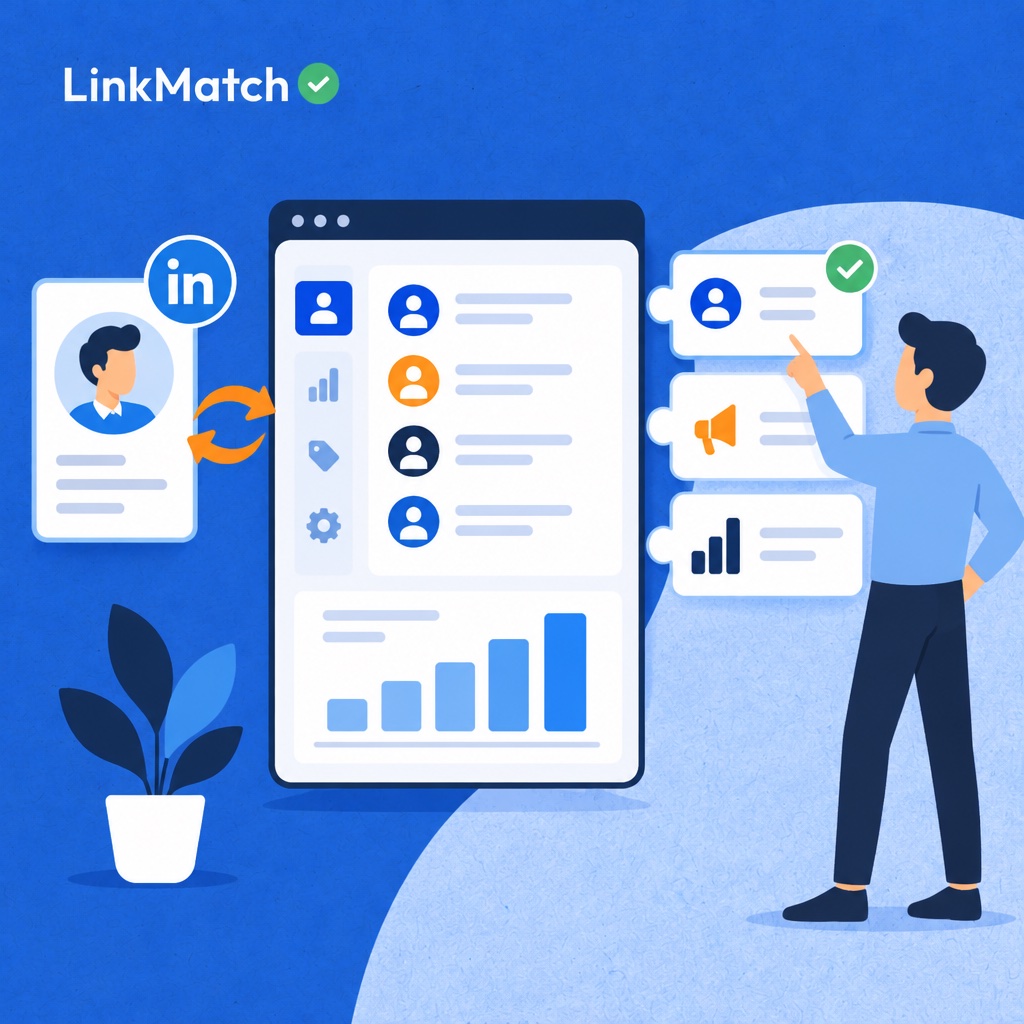
In action, tools like LinkMatch provide visibility into whether a contact already exists in your CRM, with an indicator appearing directly on LinkedIn or XING profiles. Users can then efficiently add new contacts with a single click, setting the standard for duplicate prevention and entry speed.
Popular CRMs and How They Connect to LinkedIn
The choice of LinkedIn integration for a CRM is largely dictated by the specific platform the team already uses. HubSpot, Salesforce, and Microsoft Dynamics 365 are the only options that currently have official Sales Navigator sync, while smaller CRMs like Pipedrive, Zoho CRM, Bigin, Copper, Close, and Insightly require a closer look due to inconsistent partner lists and varying marketplaces. Your ability to integrate with Sales Navigator is influenced by three key factors: your CRM plan, your Sales Navigator subscription tier, and the specific extension you choose. It's essential to verify your entitlements with each vendor and test the connection on live data before making a purchase. Resources like the Salesflare guide and sparkle.io blog offer useful starting points, but treat them as evolving resources rather than comprehensive answers. The table below provides a detailed breakdown of the available integration options for each CRM.
| CRM | Sales Navigator sync | Native LinkedIn add-on | Third-party extension options |
|---|---|---|---|
| HubSpot | Yes (supported partner) | Varies by plan | Widely available |
| Salesforce | Yes (supported partner) | Via AppExchange apps | Widely available |
| Microsoft Dynamics 365 | Yes (supported partner) | Via Microsoft integration | Available |
| Pipedrive | Check current partner list | Limited | Widely available |
| Zoho CRM / Bigin | Check current partner list | Zoho Marketplace options | Widely available |
| Copper, Close, Insightly | Check current partner list | Limited | Available |
HubSpot
HubSpot is a supported partner, so official sync is on the table. Which features you get varies by plan, so check what your HubSpot tier and Sales Navigator tier include.
Pipedrive
Check LinkedIn's current partner list before assuming official sync. Native options are limited, while third-party extensions are widely available.
Zoho CRM and Bigin
Partner status needs a current check here too. Zoho Marketplace offers add-ons, and extensions are widely available, which can spare you a Sales Navigator seat per user.
Copper, Close, and Insightly
Native add-ons are limited for all three. Third-party extensions exist, but compare duplicate handling and record editing before you commit.
Salesforce and Dynamics 365
Both are supported partners. Salesforce connects through AppExchange apps, Dynamics 365 through Microsoft's own app, and an admin usually has to switch the sync on.
Zoho CRM and LinkedIn: Integration Options Explained
Zoho CRM users have three LinkedIn integration routes: Sales Navigator sync, a Zoho Marketplace extension, or a third-party Chrome extension that works with Zoho CRM, Bigin, and Zoho Recruit. Sales Navigator sync suits teams that already pay for seats, but it adds a LinkedIn license on top of every Zoho CRM seat; a Marketplace or Chrome extension avoids the Sales Navigator seat and works from the profile page, so the choice comes down to budget, module structure, and how many people prospect every day. Whichever route you pick, settle three decisions first before importing anything into the CRM: where profiles land in Zoho, which LinkedIn fields map to which Zoho fields, and which value identifies a person uniquely, because fixing a messy, duplicated import later costs far more than spending an hour planning it properly.
Zoho CRM with Sales Navigator
Staying with the official route means one paid Sales Navigator seat per user, on top of your Zoho licenses. Confirm that your Zoho plan and Sales Navigator tier are both covered before you buy.
Zoho CRM with a Chrome extension
An extension lets reps create or update a Zoho record without leaving LinkedIn. In practice, tools like LinkMatch connect LinkedIn and XING profiles directly to Zoho CRM, Bigin, and Zoho Recruit without a Sales Navigator seat, which matters for European teams prospecting on XING.
Test any candidate on a real prospecting session. Check how it flags profiles that already exist in Zoho.
Field mapping best practices for Zoho
- Decide whether LinkedIn profiles become Leads or Contacts in Zoho before the first import.
- Map LinkedIn title, company, location, and profile URL to dedicated Zoho fields rather than a single notes field.
- Use the profile URL as a unique key, so a second import updates the existing record instead of creating a duplicate.
- Extend the same workflow, with the same mapping, to Bigin or Zoho Recruit if your team uses them.
The common pitfalls are mixing Leads and Contacts across reps and mapping the profile URL to a field that is not unique. Agree on both rules in writing before onboarding the team.
LinkedIn Solutions for Recruiters and ATS Users
Recruiters need ATS sync that creates candidate records, prevents duplicates and logs outreach history, because a sales-focused CRM connector tracks deals and accounts rather than candidates, applications and hiring pipelines. LinkedIn's official route is the Talent CRM integration for LinkedIn Recruiter, which connects Recruiter with supported hiring systems, and the LinkedIn Talent CRM integration page lists the partner platforms and the plan requirements your team must meet before it works. Teams on Greenhouse, Zoho Recruit, CATS or PCRecruiter without a matching Recruiter licence usually turn to third-party browser extensions that read the open candidate profile on screen and push it into the ATS, and success in practice depends on how well the extension handles duplicates, editing and logging, so test each candidate workflow in a live sourcing session before rolling it out to the whole recruiting team.
Whichever route you pick, check it against these four recruiter needs:
- For official Talent CRM sync, Recruiter integrations depend on your Recruiter plan and a supported ATS, so confirm both before you commit.
- Check whether a candidate already exists in the ATS before reaching out, so two recruiters never contact the same person.
- For outreach logging, InMail and message history should land on the candidate record, so colleagues see what was said and when.
- Support for XING matters for DACH-region sourcing, where many candidates maintain profiles on XING rather than LinkedIn.
Treat duplicate checks as the first filter. A recruiter who sees "already in ATS" on the profile can skip the cold message and open the existing record instead.
How to Set Up a LinkedIn CRM Integration Step by Step
A LinkedIn CRM integration setup works best in seven steps: clean and dedupe existing CRM records, choose an integration method, connect the account, map fields, set creation rules, enable sync, and pilot before rollout. Skipping the audit is the most common mistake, because a connector that syncs profiles into a CRM full of duplicates, blank fields, and outdated job titles simply multiplies the mess and makes every later step harder to trust, measure, or reverse once reps start relying on the data every day. The sequence below is tool-agnostic, so it applies whether you use LinkedIn's official Sales Navigator CRM sync, which LinkedIn documents for a defined list of supported CRMs, a CRM vendor's own extension, or a third-party browser extension, and each step should be finished and checked before the next one begins, so problems surface early.
- Merge duplicate contacts and companies, fill missing fields, and remove records nobody owns.
- Choose your integration method based on CRM, budget, and team size, weighing cost per user against how much manual entry you will tolerate.
- Install the tool and connect your CRM account, ideally with an admin present, since sync features often require admin permissions.
- Match LinkedIn name, title, company, and profile URL to CRM properties, and create custom fields for anything missing.
- Set rules for automatic versus manual contact creation, such as auto-creating only for accepted connections and reviewing everything else by hand.
- Enable profile-change updates and message logging so job changes and conversations reach the record.
- Pilot with a few reps first, then roll out with a one-page team guide covering duplicates, naming, and creation rules.
Data Quality, Privacy, and LinkedIn's Usage Rules
Data quality and compliance determine whether a LinkedIn CRM integration helps or hurts: synced records must be accurate, stored under a documented lawful basis, and collected in ways that do not breach LinkedIn's usage rules. Speed is the easy part. The hard part is trusting what lands in the CRM six months later. Profiles change, people switch employers, and a record that was right in March can be wrong by autumn. Every synced contact is also personal data, which brings legal duties. Teams contacting people in the UK or EU fall under GDPR. Canadian and Australian privacy laws and various US state laws add their own rules on notice, access, and deletion. LinkedIn, meanwhile, can restrict accounts that behave like bots, so aggressive automation puts your own access at risk. Treat all three concerns as part of setup, not as an afterthought.
- Prefer user-triggered sync: a rep who saves a profile on purpose creates a record with a clear reason, unlike bulk scraping that pulls in thousands of people nobody chose.
- Document a lawful basis for storing prospect and candidate data, and note where each contact came from.
- Schedule regular duplicate and stale-record reviews, for example monthly, so outdated job titles and double entries get cleaned up.
- Limit field access by role inside the CRM, so only people who need contact details or notes can see them.
- Honor deletion and opt-out requests across every system that holds the record, not just the CRM.
Review LinkedIn's current user agreement and your CRM vendor's data terms before rollout. Rules change, and your policy should change with them.
How to Choose the Right CRM LinkedIn Integration for Your Team
Match the CRM LinkedIn integration to your team, not the hype: the right choice depends on your CRM, per-seat budget, setup time, and the feature depth your reps use daily. Start with CRM fit, because coverage decides whether the official Sales Navigator route is even available, and then multiply the seat price by headcount, since Sales Navigator charges a seat for every rep on top of existing CRM licenses, while extensions and vendor add-ons usually charge per user instead. Then compare setup time and depth: official sync usually needs an admin to enable it for each CRM, whereas a browser extension is installed per rep, and whichever route you shortlist should be tested in a real prospecting session against duplicate detection, one-click creation, in-place editing, and profile change sync, with the folk.app and breakcold.com roundups useful for comparing candidate tools.
- For enterprise teams on Salesforce, HubSpot, or Dynamics with a Sales Navigator budget, use the official sync.
- SMB sales teams on Pipedrive, Zoho, Copper, or Close are better served by a multi-CRM Chrome extension.
- Recruiting teams need a tool with ATS support and candidate dedupe.
- If you have no CRM yet, pick a tool with CSV/Excel export as a stepping stone.
- Teams working in DACH markets need XING support, and in practice, tools like LinkMatch cover both that and CSV/Excel export, two gaps official LinkedIn integrations leave open.
FAQs about CRM with LinkedIn integration
Does LinkedIn integrate directly with CRMs?
Not in the way most people expect. LinkedIn doesn't offer an open, native connection to every CRM. The official route is Sales Navigator, which syncs with a limited set of partner CRMs, such as Salesforce, Microsoft Dynamics 365, and HubSpot. Even then, the sync depends on your plan tier and on admin setup. If your CRM isn't on the partner list, you'll need a third-party tool or a browser extension to move LinkedIn data across.
Can I connect LinkedIn to my CRM without Sales Navigator?
Yes. There are two common alternatives. The first is a Chrome extension that reads a LinkedIn profile you're viewing and pushes the contact into your CRM with one click. The second is a CRM vendor add-on or marketplace app that adds LinkedIn lookup and enrichment inside the CRM itself. Both work without a Sales Navigator subscription. Check which CRMs each tool supports and which fields it can access before you commit.
How do I integrate LinkedIn with Zoho CRM?
You have two main options. You can install a LinkedIn-related app from the Zoho Marketplace, or you can use a Chrome extension that connects to your Zoho account. In both cases, the setup follows the same steps:
1. Install the app or extension and authorize it with your Zoho login.
2. Map LinkedIn fields (name, job title, company, profile URL, location) to the matching Zoho fields in Leads, Contacts, or Accounts.
3. Add any custom fields you need, such as lead source.
4. Test with one profile before rolling it out to your team.
Correct field mapping matters most. It prevents duplicate records and keeps your data clean.
What is the best CRM for LinkedIn?
There's no single best CRM. The right choice depends on three things: the CRM you already use, your team size, and your budget. Salesforce, Dynamics 365, and HubSpot have the deepest official Sales Navigator support, which suits larger teams. Smaller teams on Zoho, Pipedrive, or similar tools often get better value from an extension. Start with the CRM you have, then check how well it connects to LinkedIn before you consider switching.
Can LinkedIn messages be saved to a CRM?
Sometimes, and it depends on the tool. Some Chrome extensions can log LinkedIn conversations or save message notes to the contact record in your CRM. Native Sales Navigator syncs usually focus on profile data and activity such as InMail, rather than a full message history. If message logging matters to you, confirm exactly what the extension captures, whether it works automatically or manually, and where the messages appear in the CRM record.
Is syncing LinkedIn data to a CRM GDPR compliant?
It can be, but the tool alone doesn't make you compliant. Under GDPR you need a lawful basis for processing personal data, and legitimate interest is the one B2B teams most often rely on. You also need to tell people how their data is used and honor access and deletion requests. Tools that sync only when a user triggers the action, such as saving a profile by hand, are generally easier to defend than bulk scraping. Review LinkedIn's terms and talk to your legal team before you set up any workflow.
How much does a LinkedIn CRM extension cost?
Cost depends on the route you choose. Sales Navigator is priced per user in tiers (Core, Advanced, and Advanced Plus), and CRM sync is generally available only on the higher tiers. Third-party extensions usually charge per user per month, and many offer a free or low-cost starter plan. Some CRM add-ons have their own fees on top of your CRM subscription. Check current pricing on each vendor's site, and compare the total per-seat cost for your whole team in 2026.
Common Mistakes When Connecting LinkedIn to Your CRM
- Connecting before cleaning existing data: Syncing LinkedIn into a CRM full of duplicates multiplies the mess. Dedupe and standardize records first.
- Assuming Sales Navigator works with every CRM: Official sync supports only a limited set of CRMs. Check the partner list before you buy seats.
- Skipping field mapping: Default mappings often drop titles, profile URLs, or custom fields. Map every field your team actually uses.
- Auto-creating every profile you view: Fully automatic creation can flood the CRM with unqualified contacts. Set clear rules for what gets added.
- Ignoring profile changes after the first import: Job changes make records stale within months. Turn on ongoing sync, not just one-time import.
- Overlooking recruiter and ATS needs: Sales-only tools often don't support ATS platforms. Recruiting teams should confirm ATS compatibility up front.
Sources
Bring Your CRM into LinkedIn and Stop Copy-Pasting
LinkMatch shows whether a LinkedIn or XING profile is already in your CRM, adds new contacts in a click, and keeps records synced, all without leaving the profile. It works with HubSpot, Pipedrive, Zoho, Copper, Close, Greenhouse, and more. Setup takes about 20 seconds, and you don't need a credit card.
Start Your Free 14-Day Trial