

Key Takeaways
- There are four realistic ways to move LinkedIn candidates into an ATS: manual entry, LinkedIn's native integrations, browser extensions, and CSV import.
- LinkedIn's native integrations require a LinkedIn Recruiter seat and a supported ATS, so many agencies and smaller teams can't use them.
- A browser extension that checks for duplicates before you add a candidate keeps your ATS cleaner than bulk imports.
- Getting the candidate into the ATS is only half the job. Without ongoing sync, notes and profile changes go stale.
- Collect only the data you need, record a lawful basis for it, and avoid tools that scrape LinkedIn in bulk.
Why manual LinkedIn-to-ATS transfers slow down hiring
Manual copy-pasting of LinkedIn profiles into an applicant tracking system (ATS) is a major bottleneck in the hiring process.
Each profile requires opening a new tab, selecting relevant fields, and rekeying details such as names, titles, and employers.
At Indigo Tech Recruiters, it took around 5–7 minutes to manually move a profile, but automation reduced that time to just 1–2 minutes.
The time-consuming process is just the tip of the iceberg.
When multiple recruiters add the same candidate to the database, duplicate profiles and fragmented notes become a nightmare to manage.
Take AgileEngine's 40,000-candidate database as an example of how easily duplicate tracking breaks down without smart matching.
Most workflow tools for LinkedIn Recruiter are designed to bridge this gap between discovery and data management.
Handoffs between teams only make things worse.
Context gets lost: who made contact, where the candidate came from, and what was already discussed.
A seamless handoff keeps that context attached to one file, saving recruiters hours of time and giving candidates a smoother experience.
4 ways to add LinkedIn candidates to your ATS
You can add LinkedIn candidates to your ATS in four ways: manual copy-paste, LinkedIn's native integration, a browser extension, or a CSV bulk import. Each method weighs the trade-off between speed and duplicate risk. Manual entry offers no cost but requires several minutes per profile and lacks a duplicate check, while native sync depends on a LinkedIn Recruiter seat and a supported ATS. Browser extensions simplify the process with a single click from the profile page, but CSV import handles volume more efficiently, leaving cleanup to you. Consider your weekly candidate volume, LinkedIn seat type, and ATS setup before choosing, with the duplicate check column serving as your deciding factor.
- Manual entry: no cost, time-consuming, no duplicate check
- Native sync: LinkedIn Recruiter seat, supported ATS, quick setup
- Browser extension: one-click setup, but limited to profile page
- CSV import: handles volume efficiently, but cleanup is manual
For more context, LinkedIn's hiring tools and HeroHunt's overview of recruiting automation provide broader insights.
Take note that split records can scatter notes, consent history, and outreach context across profiles.
| Method | What you need | Time per profile | Duplicate check | Best for |
|---|---|---|---|---|
| Manual copy-paste | LinkedIn account + ATS login | Several minutes | None (relies on memory/search) | Very low volume |
| LinkedIn native integration (e.g., Recruiter System Connect, export to ATS) | LinkedIn Recruiter seat + supported ATS + admin setup | Seconds | Partial (ATS-side matching) | Corporate TA teams on Recruiter |
| Browser extension (ATS vendor plugin or third-party tool) | Chrome + ATS account | One click | Yes, with tools that match profiles against existing records | Agencies, lean teams, mixed CRM/ATS stacks |
| CSV/Excel export and bulk import | Spreadsheet + ATS import tool | Fast in bulk, slow to clean | Manual dedupe required | One-off migrations or teams without an ATS |
Method 1: LinkedIn's native ATS integrations
LinkedIn's native ATS integrations work well when a team already pays for a LinkedIn Recruiter seat and runs a supported applicant tracking system, because profiles export to job requisitions without any extra software. Once connected, a recruiter can export a profile from Recruiter straight into a chosen requisition. The ATS status and history then appear inside the Recruiter profile view, so nobody switches tabs to check a candidate. Candidate data syncs between the two systems, which keeps both sides happy. The catch is cost and coverage. Recruiter is a premium product priced for enterprise teams, as LinkedIn's hiring page describes. It works only with LinkedIn's certified ATS partners. Recruiter Lite and basic accounts do not get the same access. Capterra's LinkedIn Recruiter listing is a useful place to compare it with alternatives before you commit. For a corporate talent team already holding seats, that trade is usually worth it.
What you need before you start
Before you begin, confirm your ATS is on LinkedIn's supported business partner list. You'll also need a Recruiter admin and an ATS admin to enable the integration. Map job requisitions so profiles land in the right pipeline, then send a profile from Recruiter to a specific requisition. Finally, check ATS status and history from the Recruiter profile view.
Where native integrations fall short
Profiles you find on a regular LinkedIn account never reach the ATS on their own. A messy requisition setup sends candidates to the wrong pipeline. The whole arrangement also depends on two admins keeping their systems in step. LinkedIn's Recruiter Help lists current feature details.
Method 2: One-click integration with a browser extension
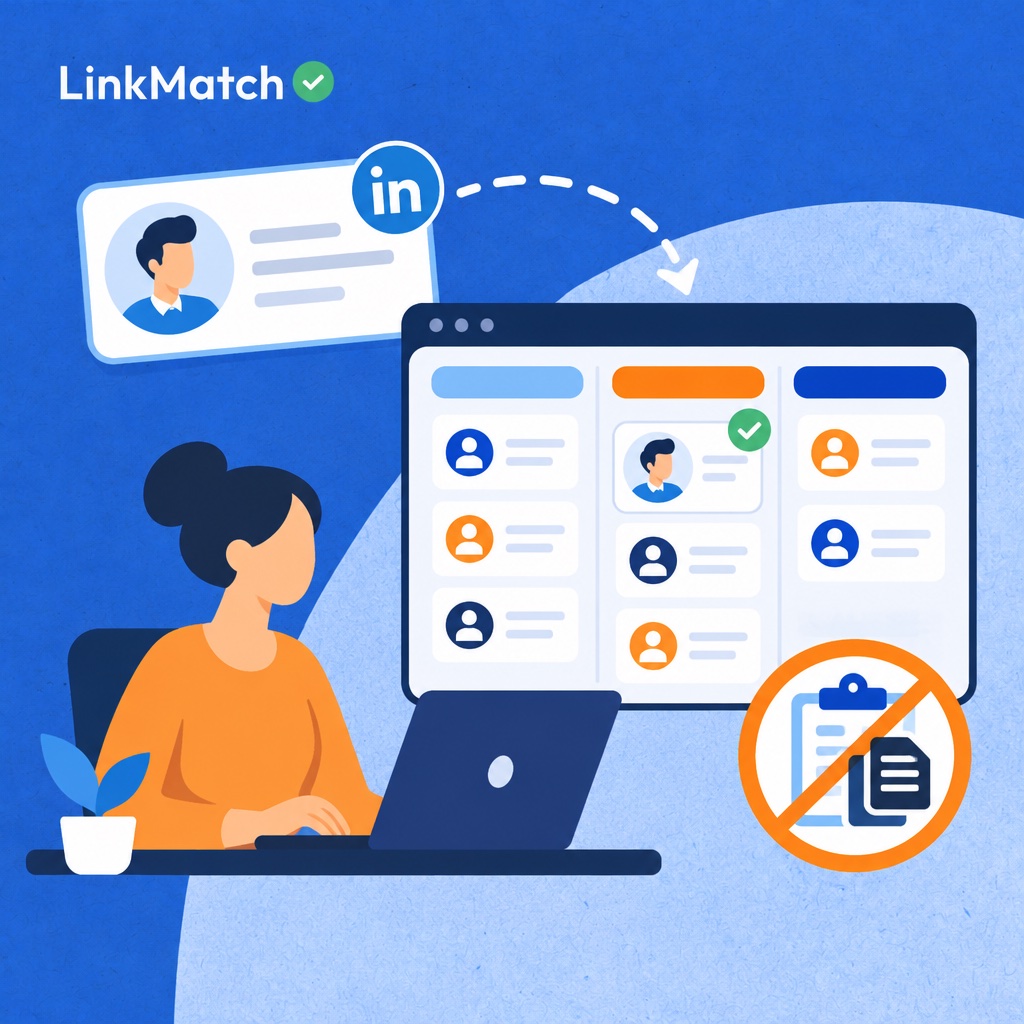
A browser extension adds LinkedIn or XING candidates to an applicant tracking system in one click, but it only protects your database when it checks for an existing record before creating a new one. The workflow sits on top of the profile page, so recruiters never retype names, job titles or employers into a separate tab, and the match indicator tells them whether a record already exists before any data moves, which keeps notes, consent history and outreach attached to one candidate instead of split across several. Two types exist: ATS-vendor plugins that only write to their own system, and multi-ATS tools that suit agencies serving several clients; in practice, LinkMatch shows on the profile whether a candidate is already in Zoho Recruit, CATS, PCRecruiter or Greenhouse, so recruiters add new people in one click without creating duplicates.
- Install the extension and connect your ATS account.
- Open a candidate profile on LinkedIn or XING.
- Check the match indicator to see whether the candidate already exists.
- Add new candidates in one click, with fields mapped automatically.
- Tag the profile or attach it to an open role.
Roundups such as leonar.app's guide to LinkedIn Recruiter workflow tools and herohunt.ai's recruitment automation overview help you compare options before you commit.
Keeping candidate records up to date after the first import
A candidate record in an applicant tracking system starts going stale the moment a recruiter saves it, because job titles, employers, and contact details on LinkedIn keep changing while the ATS copy stays frozen. People change roles, titles shift, and email addresses lapse, so a record pulled last month can point to the wrong company or a job that no longer exists. Meanwhile, recruiters keep talking to candidates through InMail and LinkedIn messages, and those conversations rarely reach the ATS unless someone copies them across by hand, so the next colleague opens a file with gaps. In practice, tools like LinkMatch update ATS records when LinkedIn details change and let recruiters edit notes and activities directly on the profile, and pin.com's 2026 LinkedIn sourcing tips offer wider context on building a repeatable sourcing routine.
These tools allow you to push job title and company changes back to the ATS record, log InMail and message conversations to the candidate timeline (on the Professional plan) so the full history sits in one place, add notes and activities without leaving the profile, and enrich missing email addresses so follow-up can happen outside LinkedIn.
Which method fits your team size and ATS
Solo recruiters, agencies, mid-size in-house teams and enterprise talent teams each need a different method for adding LinkedIn candidates to an ATS, chosen by team size, LinkedIn seat type and ATS support. Seat type sets the ceiling, because native integrations require a full Recruiter seat and a supported ATS, while browser extensions and CSV imports work with lighter access such as Basic or Recruiter Lite. Cost follows the same logic: Recruiter is a premium, paid product (per Capterra's listing), so smaller teams usually get more value from a lightweight tool than from a seat upgrade. Team size then decides how much duplicate control you need, since more recruiters writing to the same files means more split notes, duplicated outreach and lost history. Teams still weighing seats can compare options in Findem's roundup of LinkedIn Recruiter alternatives before committing budget.
| Team type | Typical LinkedIn access | Recommended method | Why |
|---|---|---|---|
| Solo or freelance recruiter | Basic or Recruiter Lite | Browser extension or CSV export | No Recruiter seat needed, low cost |
| Recruitment agency (5–50 recruiters) | Mixed seats | Multi-ATS browser extension | Works across seat types and keeps shared records free of duplicates |
| In-house TA, mid-size company | Recruiter Lite or Recruiter | Extension, plus native integration if supported | Balances cost with pipeline visibility |
| Enterprise TA team | LinkedIn Recruiter | Native integration plus extension for gaps | Native sync for reqs, extension for XING and non-Recruiter users |
Privacy and compliance guardrails for US, UK, Canadian, and Australian recruiters
Saving a LinkedIn profile to your ATS is a critical step, but it also creates legal obligations around data privacy and security. You assume responsibility for that candidate's personal information from the moment you click "save," so approach every profile with caution. Only collect the essential details, such as name, job title, current employer, and contact method. Discard any non-essential or sensitive information. Make a note of where each profile originated and why you saved it. To prevent data clutter, set a defined retention period for inactive profiles. If they haven't been used in a while, review or delete them. Remember, candidates have the right to know what you're storing about them, so keep your records updated and easy to access. When using bulk-scraping tools, use extreme caution, as they can run counter to LinkedIn's terms of use and put your account at risk.
Browse LinkedIn's Recruiter Help center for more details on what its products support.
| Market | Key privacy framework | Practical implication for sourcing |
|---|---|---|
| United States | State laws such as California's CCPA/CPRA | Give candidates notice and honor access and deletion requests where these laws apply |
| United Kingdom | UK GDPR + Data Protection Act 2018 | Document a lawful basis (often legitimate interest) and tell candidates within one month |
| Canada | PIPEDA + provincial laws | Collect only what's needed for recruiting purposes and get consent where it's required |
| Australia | Privacy Act 1988 (Australian Privacy Principles) | Notify candidates when you collect their data and keep records accurate and secure |
It's essential to treat this guidance as advisory versus prescriptive. Consult with qualified legal experts to validate your approach.
Pre-rollout checklist
A clear LinkedIn-to-ATS integration strategy succeeds when your entire team is aligned on key details, such as seat types, field mapping, duplicate rules, tagging, retention, and a small pilot test before commencing the process. Skipping this foundational work leads to inconsistent data and fragmented candidate histories. Each step listed below requires minimal time to complete, yet it saves time in the long run. Process them methodically, documenting each answer in a shared, one-page document. Treat it as the benchmark, revisiting it whenever your seat allocation, ATS, or team size changes.
- Start by confirming what LinkedIn seat types your team has access to, as some integrations depend on them.
- ATS verification: ensure your chosen method is compatible with your existing ATS setup before training your team.
- Reach consensus on field mapping and required fields so that every candidate profile arrives in a standardized format.
- Define a consistent duplicate-check approach: outline it once and ensure every recruiter follows it.
- Establish tagging conventions for roles and talent pools to ensure consistent search results.
- Document your data retention periods and privacy notices in alignment with the guidelines outlined above.
- Conduct a trial run with 2–3 recruiters, identify any issues, then roll out to your full team.
FAQs about add linkedin candidates to ats
Can I Add LinkedIn Candidates to My ATS without LinkedIn Recruiter?
Yes, you can add LinkedIn candidates to your applicant tracking system (ATS) without a LinkedIn Recruiter license. A browser extension can extract a profile’s name, role, company, location, and profile URL, and push it into your ATS with just one click.
What is LinkedIn Recruiter System Connect?
LinkedIn Recruiter System Connect is LinkedIn’s native extension that enables seamless two-way syncs between your LinkedIn Recruiter and your ATS. It allows candidate profiles and activity to flow into your ATS, while keeping your ATS status updates aligned with Recruiter. However, it only supports a limited list of approved ATS platforms, and an admin must set it up and enable it for your team.
How Can I Avoid Duplicate Candidates When Importing From LinkedIn?
To avoid duplicate profiles when importing candidates from LinkedIn, run a match check before adding anyone. Compare the LinkedIn profile URL, email address, and name against your existing records, and update the existing record when you find a match. To maintain consistency, establish a shared duplicate check rule for your team, such as prioritizing profile URL over email address.
Is it Legal to Save LinkedIn Profiles in an ATS?
Yes, it’s generally lawful to save LinkedIn profiles in an ATS if you have a legitimate reason for processing the data and provide candidates with proper notice. Under GDPR, for instance, you must demonstrate legitimate interest, offer a clear retention period, and allow candidates to access and delete their data. Only save relevant data tied to the hiring process and avoid mass data scraping, which can contravene LinkedIn’s terms and raise data privacy concerns.
Can I Add XING Candidates to an ATS?
Yes, you can add XING profiles to your ATS, but not using LinkedIn’s built-in tools. Since Recruiter System Connect only supports LinkedIn, you need a third-party extension that can handle profiles from both LinkedIn and XING. This extension will extract profile details and send them to your ATS in a similar flow.
Mistakes that clutter your ATS with bad LinkedIn data
- Adding candidates without checking for existing records: Without a match check, the same candidate ends up in several records with split notes, so two recruiters can contact them about the same role.
- Treating the import as the finish line: Profiles change constantly. Without sync, your ATS shows old titles and employers just when you need to re-engage a candidate.
- Bulk-importing unmapped CSV files: Mismatched columns put data in the wrong fields and create cleanup work that takes longer than the time the import saved.
- Using scraping tools that violate LinkedIn's terms: Bulk scrapers can get accounts restricted and raise privacy compliance risk in every target market.
- Leaving LinkedIn conversations out of the ATS: When InMail threads stay on LinkedIn, teammates lose context, and candidates get repeated or conflicting outreach.
Sources
Add LinkedIn candidates to your ATS in one click
LinkMatch shows whether a LinkedIn or XING profile is already in Greenhouse, Zoho Recruit, CATS, or PCRecruiter, adds new candidates in one click, and keeps their records in sync. Setup takes 20 seconds, and you don't need a credit card.
Start Free Trial