

Key Takeaways
- Zoho CRM doesn't offer a one-click sync with standard LinkedIn profiles, so most teams fill the gap with a browser extension, an automation tool, or CSV imports.
- A Chrome extension that works directly on LinkedIn profiles is the fastest way to check for existing records and add new contacts without switching tabs.
- Check for duplicates before you create a record. Cleaning up a messy Zoho database later costs far more time.
- Zoho CRM, Zoho Recruit, and Bigin each need a slightly different field mapping, so plan yours before you connect anything.
- Compare the total cost, including Sales Navigator seats and integration fees, against the hours your team currently loses to manual data entry.
What a Zoho LinkedIn Integration Actually Does
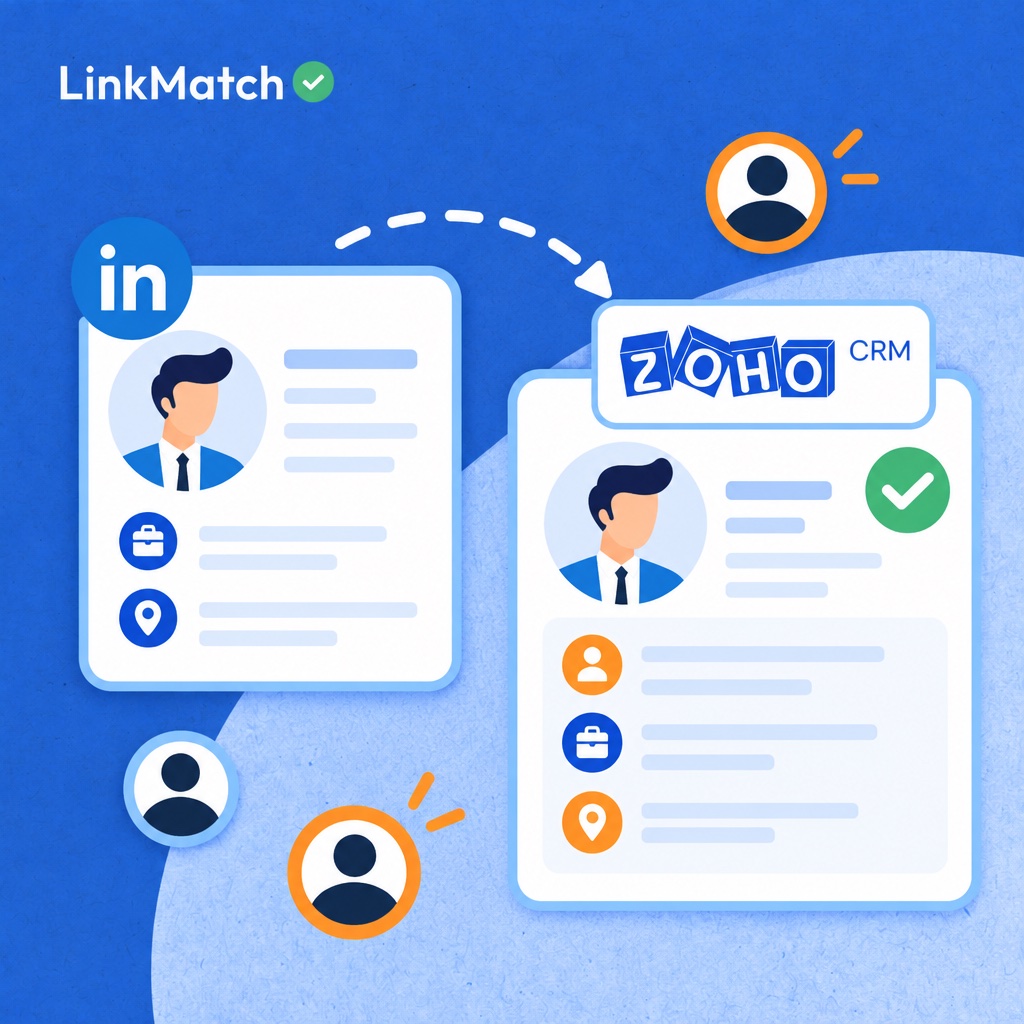
A Zoho LinkedIn integration moves selected profile data, such as name, title, company, and profile URL, from LinkedIn into Zoho CRM, Zoho Recruit, or Bigin, replacing manual copy-paste with a single clean record per contact. Typing those details by hand costs minutes per profile, and because LinkedIn drives 89% of B2B leads (folk.app), the volume adds up to hours of lost selling time every week, plus typos, outdated titles, and records that never reach the right owner. The core problem is duplicate and stale records: the same person gets entered twice by two colleagues, and a promotion or job change on LinkedIn never updates the Zoho entry, so campaigns, reports, and follow-ups run on bad data. There is also no native "connect" button, because Zoho does not sync standard LinkedIn profiles on its own.
Here is what can realistically move between the two platforms:
- Contact basics like name, headline, current company, and location.
- The LinkedIn profile URL, which works as a unique identifier and keeps duplicates out.
- Notes, tasks, and deal associations attached to the right record.
- Addresses found through a third-party enrichment service.
- Conversation history logged as activities, so the next owner has context.
LinkedIn limits how much data any tool can pull, especially sensitive details, and it does not share email addresses. Treat any platform that promises to sync everything as a red flag.
Your Options for Connecting LinkedIn and Zoho CRM
Zoho CRM users have four realistic ways to connect LinkedIn: a Sales Navigator widget, automation platforms like Zapier or Make, a Chrome extension, or manual CSV import, and each trades speed, coverage, and data quality differently. The Sales Navigator widget fits teams already paying for seats, and Forrester research cited by LinkedIn credits the product with saving each salesperson 15 minutes per day, yet the widget only displays data inside Zoho records. Seats are not free either, since Sales Navigator Core starts at $119.99 per month (Salesflare, 2026), so weigh that cost before leaning on the widget alone. Zapier and Make suit inbound lead gen forms and ad responses, but they never support profiles you browse manually. A Chrome extension works on the profile page itself, which makes it the usual pick for prospecting and sourcing, though every user must install it. CSV import suits one-off migrations only, because exported data goes stale fast and creates duplicates.
| Method | How it works | Best for | Main limitation |
|---|---|---|---|
| Sales Navigator widget in Zoho | Shows LinkedIn data inside Zoho records | Teams already paying for Sales Navigator | Viewing data inside Zoho, not adding contacts from LinkedIn |
| Automation tools (Zapier, Make) | Triggers on lead gen forms or ads | Inbound LinkedIn ad leads | Doesn't capture profiles you browse |
| Chrome extension | Works directly on LinkedIn profile pages | Prospecting and candidate sourcing | Requires a browser install per user |
| Manual CSV import | Export, clean, and upload in bulk | One-off migrations | Data goes stale fast and creates duplicates |
How to Connect LinkedIn to Zoho CRM in Five Steps
Connecting LinkedIn to Zoho CRM takes five steps: install a Chrome extension, authorize Zoho with the correct data center, map fields to modules, test on a known profile, and roll out shared rules to the team. Setup takes minutes when field mapping comes first, because every LinkedIn field needs a destination before the first profile is saved. In practice, tools like LinkMatch connect to Zoho CRM in about 20 seconds with no credit card required, so the install is rarely the slow part. The real time goes into decisions: which module receives each profile, and which fields your team actually uses. Work through the steps below in order, and keep one person responsible for the configuration.
- Install the Chrome extension from the Chrome Web Store, pin it to your toolbar, and sign in.
- Authorize your Zoho CRM account and choose the correct data center: US, EU, AU, or another region. A mismatched data center is a common roadblock.
- Map LinkedIn fields to Zoho modules, deciding whether profiles become Leads, Contacts, or Accounts.
- Open a LinkedIn profile you know already exists in Zoho and confirm the extension detects the match instead of creating a duplicate.
- Roll out to the team with shared field rules, so everyone saves data the same way.
Zoho CRM, Zoho Recruit, or Bigin: Which Setup Fits Your Team
Zoho CRM fits sales and business development teams, Zoho Recruit fits recruiters and staffing agencies, and Bigin fits small teams and founders, because each product stores LinkedIn profile data in different records. In Zoho CRM, a LinkedIn profile becomes a lead, contact, or account, so map title, company, profile URL, and lead source to keep follow-up sequences, reports, and filters working as intended, because those fields decide which record each rep opens next. In Zoho Recruit, profiles land as candidates, client contacts, clients, or job openings, so recruiters should map current role, skills, experience, and profile URL, and can assign candidates straight to job openings from the profile, while Bigin, installed as an official Marketplace app through OAuth, keeps things lighter with contacts and pipelines, where name, company, pipeline stage, and notes are usually enough.
| Zoho product | Typical user | Where LinkedIn data lands | Key fields to map |
|---|---|---|---|
| Zoho CRM | Sales and BD teams | Leads, Contacts, Accounts | Title, company, profile URL, lead source |
| Zoho Recruit | Recruiters and staffing agencies | Candidates | Current role, skills, experience, profile URL |
| Bigin by Zoho | Small teams and founders | Contacts and Pipelines | Name, company, stage, notes |
Recruiting workflows are a distinct case. LinkedIn's talent CRM integration page treats candidate data as its own category, separate from sales leads. Pick the product first, then map fields to match how your team works.
Keeping Zoho Records Clean: Duplicate Checks and Profile Sync
Duplicate records in Zoho start when someone saves a LinkedIn profile without checking for an existing match, and the LinkedIn profile URL is the most reliable key for preventing them. Names change, spellings vary, and people swap work emails when they change jobs, so matching on either one lets near-duplicates slip through. The profile URL stays the same through all of that, which makes it a stable anchor for every lead, contact, or candidate.
Manual: a rep retypes the name, misses the existing lead, and ends up with two records holding different job titles.
Synced: the profile is matched by URL first, and the existing record is updated instead of duplicated. Over time, the manual route leaves stale titles and companies that quietly break filters, reports, and follow-up sequences, because nobody revisits a record once it exists.
- Match key: use the LinkedIn URL as the unique identifier.
- Check for an existing record before creating a new one.
- Update the title and company automatically when a contact changes jobs.
- Quarterly audit: review the duplicate rules in Zoho and clear near-matches.
In practice, tools like LinkMatch show on the LinkedIn profile itself whether that person already exists in Zoho, and they sync changed details. That puts the first three habits into the next step instead of leaving them to memory.
Logging LinkedIn Conversations and Notes in Zoho
Untracked LinkedIn messages leave gaps in team handoffs, because budget talks, timing, objections and promised next steps stay in one person's inbox while the Zoho record shows nothing about the conversation. A recruiter or salesperson who inherits that lead must start from scratch, ask redundant questions and risk looking careless to a contact who already explained everything once; the same gap appears whenever a colleague leaves the company or goes on leave, because the context walked out with them. The fix is a shared record on the right Zoho module (Leads, Contacts or Accounts in Zoho CRM, Candidates or Job Openings in Zoho Recruit, Contacts and Pipelines in Bigin), where the conversation context lives next to the work, a setup also covered in Breakcold's guide to LinkedIn CRM workflows, so nobody retypes the same thread twice.
- Save key threads: log the important message threads as notes or activities on the matching record.
- Tag contacts by campaign or talent pool so they stay searchable across teams.
- Create follow-up tasks directly from the profile, each with an owner and a due date.
- Keep notes short and decision-focused, since a full transcript is rarely what the next person needs.
What a Zoho LinkedIn Setup Really Costs
The real cost of a Zoho LinkedIn setup combines license fees for Sales Navigator, automation platforms and extensions with the hidden labor hours your team spends on manual data entry every week. Sales Navigator Core is only needed if you want the embedded widget route, automation platforms scale their pricing with task volume, and Chrome extensions are usually billed per user per month, so free trials and team pricing are worth checking before you commit to any single route across the whole team. Manual entry carries no invoice, yet its hours grow with team size and prospecting volume, so the route that looks cheapest on paper often becomes the most expensive once recruiter or sales time is counted; Salesflare's roundup of LinkedIn CRM integrations and LinkedIn's guide to CRM integrations with Sales Navigator both help you compare the routes side by side.
| Cost component | Typical range | Notes |
|---|---|---|
| LinkedIn Sales Navigator Core | From $119.99/month per seat | Optional, needed for the embedded widget route |
| Automation platform | Free to paid tiers | Pricing scales with task volume |
| Chrome extension subscription | Per user per month | Check for free trials and team pricing |
| Manual data entry | Hidden labor hours | Grows with team size and prospecting volume |
Staying Within LinkedIn's Rules and Data Privacy Laws
Staying compliant when syncing LinkedIn profiles into Zoho means avoiding bulk scraping that breaks LinkedIn's terms, keeping only data you can justify, and honoring privacy rights under GDPR, UK GDPR, PIPEDA, and the Australian Privacy Act. LinkedIn's User Agreement prohibits scraping and unapproved automation, and the platform enforces this through rate limits and account restrictions, so a tool that pulls hundreds of profiles an hour puts your seat and your team's access at risk. Once a profile lands in Zoho CRM, Zoho Recruit, or Bigin, you become responsible for that personal data: under GDPR and UK GDPR you need a documented lawful basis, PIPEDA expects meaningful consent or a clear purpose for Canadian contacts, and the Australian Privacy Act expects you to collect only what is reasonably necessary and to delete it when it is no longer needed.
- Avoid bulk scraping: choose tools that scrape one profile at a time, while you browse, instead of harvesting lists.
- Store only the data you have a legitimate reason to keep, such as name, role, company, and profile URL.
- Document a lawful basis for EU, UK, and Canadian contacts, and record it in a Zoho field or note.
- Honor requests: delete or suppress contacts in Zoho promptly when someone opts out or asks for erasure.
- Review stale records every quarter and remove contacts you no longer have a reason to hold.
Treat this as a working checklist, not legal advice. Ask your counsel to confirm the rules for your markets.
FAQs about Zoho LinkedIn CRM integration
Does Zoho CRM have a native LinkedIn integration?
Not in the way most people expect. Zoho CRM offers a LinkedIn Sales Navigator widget that displays LinkedIn profile information inside a Zoho record, but it does not provide a standard, two-way profile sync. Contact data doesn't flow automatically from LinkedIn into your CRM fields. To view profiles as leads or contacts, most teams pair Zoho with a Chrome extension or an automation tool that handles the data transfer.
Can I add LinkedIn contacts to Zoho CRM automatically?
Yes. A Chrome extension can read a LinkedIn profile and add it to Zoho CRM in one click, or automatically as you browse, so you don't need to copy and paste. During setup you map LinkedIn fields to Zoho fields. For example, name goes to First Name and Last Name, job title goes to Title, company goes to Account Name, and the profile link goes to a custom URL field. Set up the mapping once and every new record uses it. Choose the target module (Leads or Contacts) and assign an owner so new records route to the right person.
Do I need LinkedIn Sales Navigator to connect LinkedIn and Zoho?
It depends on the method. Chrome extensions and most automation tools work with a regular LinkedIn account, so Sales Navigator isn't required. The embedded widget inside Zoho CRM does require an active Sales Navigator subscription, because it pulls data from that product. If you only need to import profiles into Zoho, an extension is usually the cheaper route. If you want LinkedIn insights displayed inside the CRM record, you'll need Sales Navigator.
How do I avoid duplicate contacts when importing from LinkedIn to Zoho?
Use the LinkedIn profile URL as your match key. Create a custom field for it in Zoho and mark it as unique, or use it as the lookup criterion in your duplicate-check rules. Before adding a record, run a lookup on that URL. If a match exists, update the record instead of creating a new one. Email addresses and names are less reliable, since LinkedIn profiles often lack an email and people share similar names. Normalize URLs first by stripping tracking parameters and trailing slashes so the same profile always produces the same value.
Does LinkMatch work with Zoho Recruit and Bigin?
Yes, with some differences in setup. In Zoho Recruit, map LinkedIn data to the Candidates module, with fields such as name, current employer, job title, location, and profile URL, so sourced profiles go straight into your talent pipeline. Bigin, Zoho's CRM for small teams, uses a simpler structure with Contacts, Companies, and Pipelines. You can map LinkedIn profiles to Contacts and drop them into a pipeline stage for follow-up. Check that the extension or tool you choose supports each product, as support varies.
Is syncing LinkedIn data to Zoho GDPR compliant?
It can be, but compliance depends on how you use the data and not on the tool. First, establish a lawful basis for processing, commonly legitimate interest for B2B outreach, and document your assessment. Second, apply data minimization: collect only the fields you actually need, such as name, role, and company, and avoid pulling in unnecessary personal details. Also give people clear notice of how their data is used, honor access and deletion requests, set retention limits, and respect LinkedIn's terms of service. Consult a legal professional for your specific situation.
Common Mistakes When Connecting LinkedIn to Zoho
- Adding contacts before checking for existing records: Skipping the lookup creates duplicates that split notes and deal history across multiple Zoho records.
- Mapping everything into the Leads module: Sending every LinkedIn profile to Leads, including existing customers and candidates, clutters pipelines and skews reporting.
- Relying on one-time CSV imports: Exported data starts going stale as soon as contacts change jobs, so Zoho quickly falls behind LinkedIn.
- Using scraping tools that break LinkedIn's terms: Aggressive bulk extraction risks account restrictions and can create privacy compliance problems.
- Letting each rep set up fields differently: Inconsistent field mapping across the team makes Zoho data unreliable for segmentation and handoffs.
Sources
Connect LinkedIn to Zoho in 20 Seconds
See which LinkedIn profiles are already in Zoho CRM, Zoho Recruit, or Bigin, add new contacts in one click, and keep records synced, all without leaving LinkedIn. Try it free for 14 days, no credit card required.
Start Your Free Trial